04. Check Device Location
KOTLIN PART2 L4 A04 Check Device Location
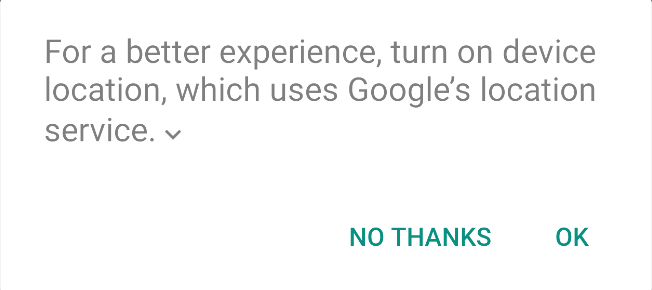
Having the user grant permissions is only one part of the permissions needed, another thing to check is if the device’s location is on. In this step, you will add code to check that a user has their device location enabled and if not, display an activity where they can turn it on.
- Copy this code into the
checkDeviceLocationSettingsAndStartGeofence()method inHuntMainActivity.kt, we will go over the steps in the bullet points below.
private fun checkDeviceLocationSettingsAndStartGeofence(resolve:Boolean = true) {
   val locationRequest = LocationRequest.create().apply {
       priority = LocationRequest.PRIORITY_LOW_POWER
   }
   val builder = LocationSettingsRequest.Builder().addLocationRequest(locationRequest)
   val settingsClient = LocationServices.getSettingsClient(this)
   val locationSettingsResponseTask =
       settingsClient.checkLocationSettings(builder.build())
   locationSettingsResponseTask.addOnFailureListener { exception ->
       if (exception is ResolvableApiException && resolve){
           try {
               exception.startResolutionForResult(this@HuntMainActivity,
                   REQUEST_TURN_DEVICE_LOCATION_ON)
           } catch (sendEx: IntentSender.SendIntentException) {
               Log.d(TAG, "Error getting location settings resolution: " + sendEx.message)
           }
       } else {
           Snackbar.make(
               binding.activityMapsMain,
               R.string.location_required_error, Snackbar.LENGTH_INDEFINITE
           ).setAction(android.R.string.ok) {
               checkDeviceLocationSettingsAndStartGeofence()
           }.show()
       }
   }
   locationSettingsResponseTask.addOnCompleteListener {
       if ( it.isSuccessful ) {
           addGeofenceForClue()
       }
   }
}- First, create a
LocationRequest, aLocationSettingsRequestBuilder.
   val locationRequest = LocationRequest.create().apply {
       priority = LocationRequest.PRIORITY_LOW_POWER
   }
val builder = LocationSettingsRequest.Builder().addLocationRequest(locationRequest)- Next, use
LocationServicesto get the Settings Client and create a val calledlocationSettingsResponseTaskto check the location settings.
val settingsClient = LocationServices.getSettingsClient(this)
val locationSettingsResponseTask =
settingsClient.checkLocationSettings(builder.build())- Since the case we are most interested in here is finding out if the location settings are not satisfied, add an
onFailureListener()to thelocationSettingsResponseTask.
javascript
locationSettingsResponseTask.addOnFailureListener { exception ->
}
- Check if the exception is of type
ResolvableApiExceptionand if so, try calling thestartResolutionForResult()method in order to prompt the user to turn on device location.
if (exception is ResolvableApiException && resolve){
   try {
       exception.startResolutionForResult(this@HuntMainActivity,
           REQUEST_TURN_DEVICE_LOCATION_ON)
}- If calling
startResolutionForResultenters thecatchblock, print a log.
catch (sendEx: IntentSender.SendIntentException) {
   Log.d(TAG, "Error getting location settings resolution: " + sendEx.message)
}- If the exception is not of type
ResolvableApiException, present a snackbar that alerts the user that location needs to be enabled to play the treasure hunt.
else {
   Snackbar.make(
       binding.activityMapsMain,
       R.string.location_required_error, Snackbar.LENGTH_INDEFINITE
   ).setAction(android.R.string.ok) {
       checkDeviceLocationSettingsAndStartGeofence()
   }.show()
}- If the
locationSettingsResponseTaskdoes complete, check that it is successful, if so you will want to add the geofence.
locationSettingsResponseTask.addOnCompleteListener {
   if ( it.isSuccessful ) {
       addGeofenceForClue()
   }
}- Replace the code below in the
onActivityResult()method. After the user chooses whether to accept or deny device location permissions, this checks if the user has chosen to accept the permissions. If not, it will ask again.
override fun onActivityResult(requestCode: Int, resultCode: Int, data: Intent?) {
   super.onActivityResult(requestCode, resultCode, data)
   if (requestCode == REQUEST_TURN_DEVICE_LOCATION_ON) {
       checkDeviceLocationSettingsAndStartGeofence(false)
   }
}
`
- To test this, turn off your device location and run the app. You should see this pop up, press OK.